Proxy Settings
Eclipse Cyclone DDS Insight supports automatic update checks and can download updates from the internet. If you are behind a proxy server, you need to configure the proxy settings in order for these features to work.
Configuring Proxy Settings
To configure the proxy settings, follow these steps:
Open Eclipse Cyclone DDS Insight.
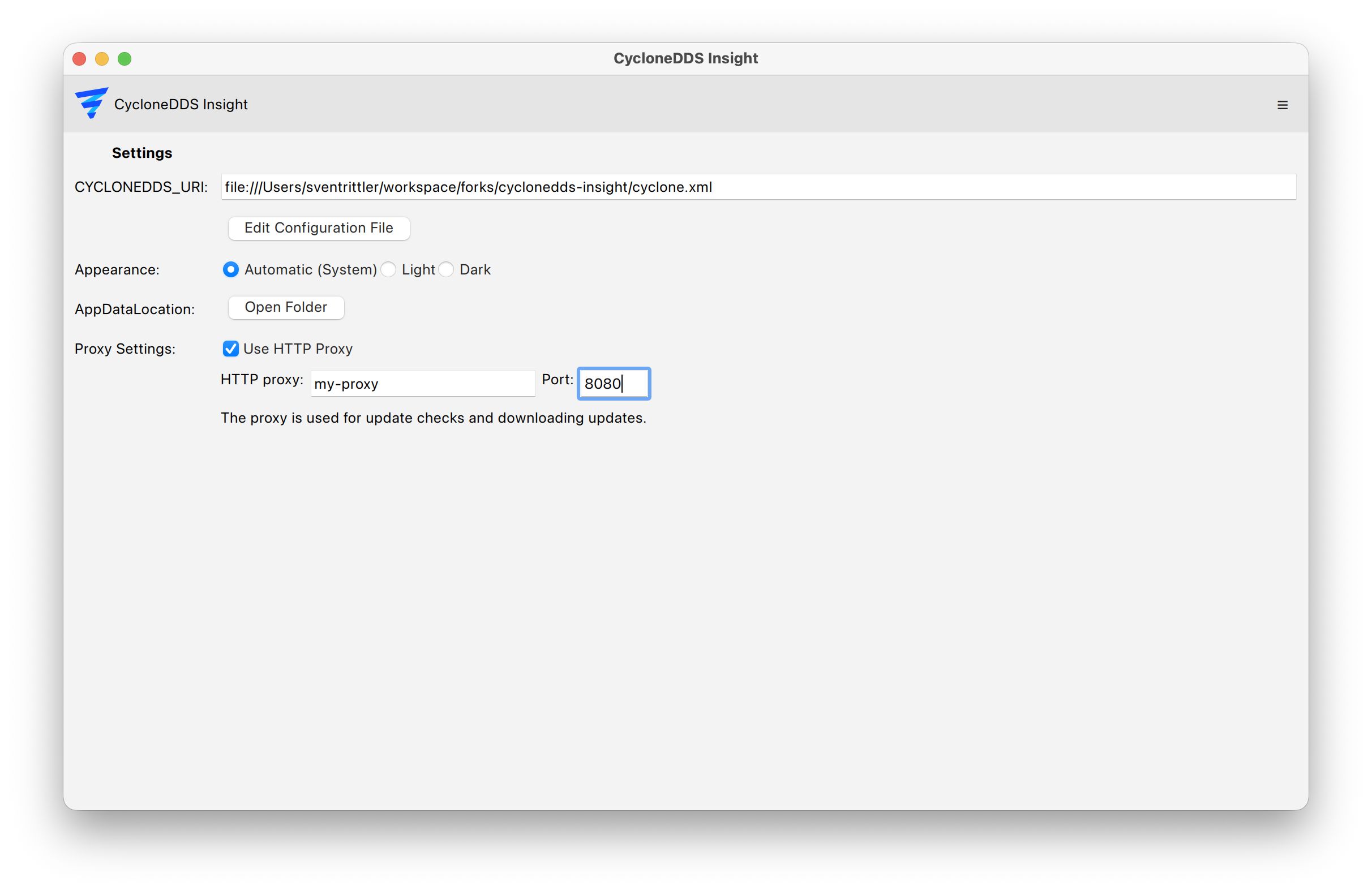
Go to the “Settings” menu.
Navigate to the “Proxy Settings” section.
- Enter the following details:
Enable: Set checkbox to enable proxy usage.
Proxy: Enter the hostname or IP address of the proxy server.
Port: Enter the port number used by the proxy server.
Go to “Menu” -> “Check for updates”
- Enter your proxy authentication details if prompted:
Username: Your proxy username.
Password: Your proxy password.
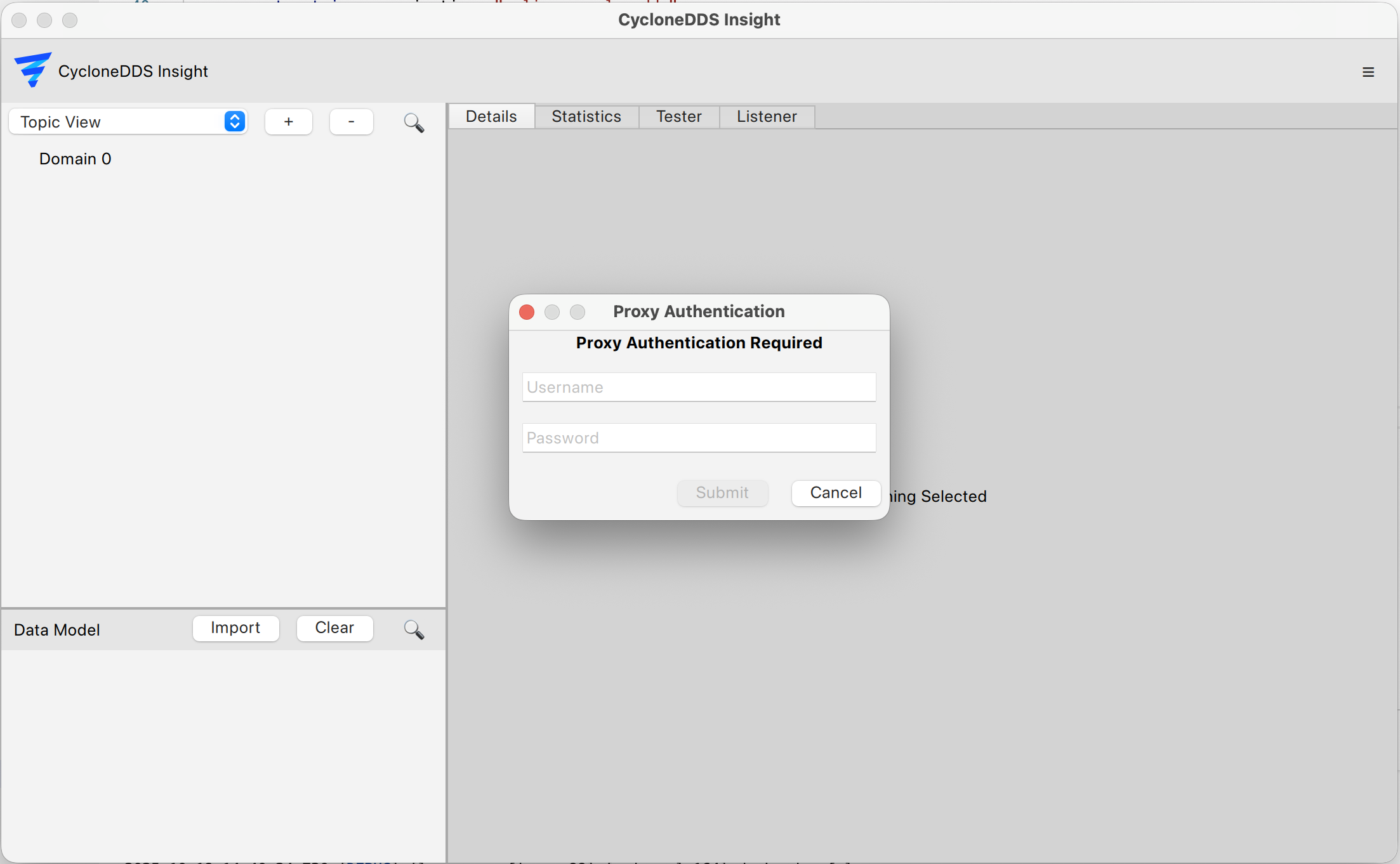
7. Press “Submit” and proceed with the update check. Passwords are only stored in memory and are never saved to disk. They need to be re-entered when restarting Eclipse Cyclone DDS Insight.