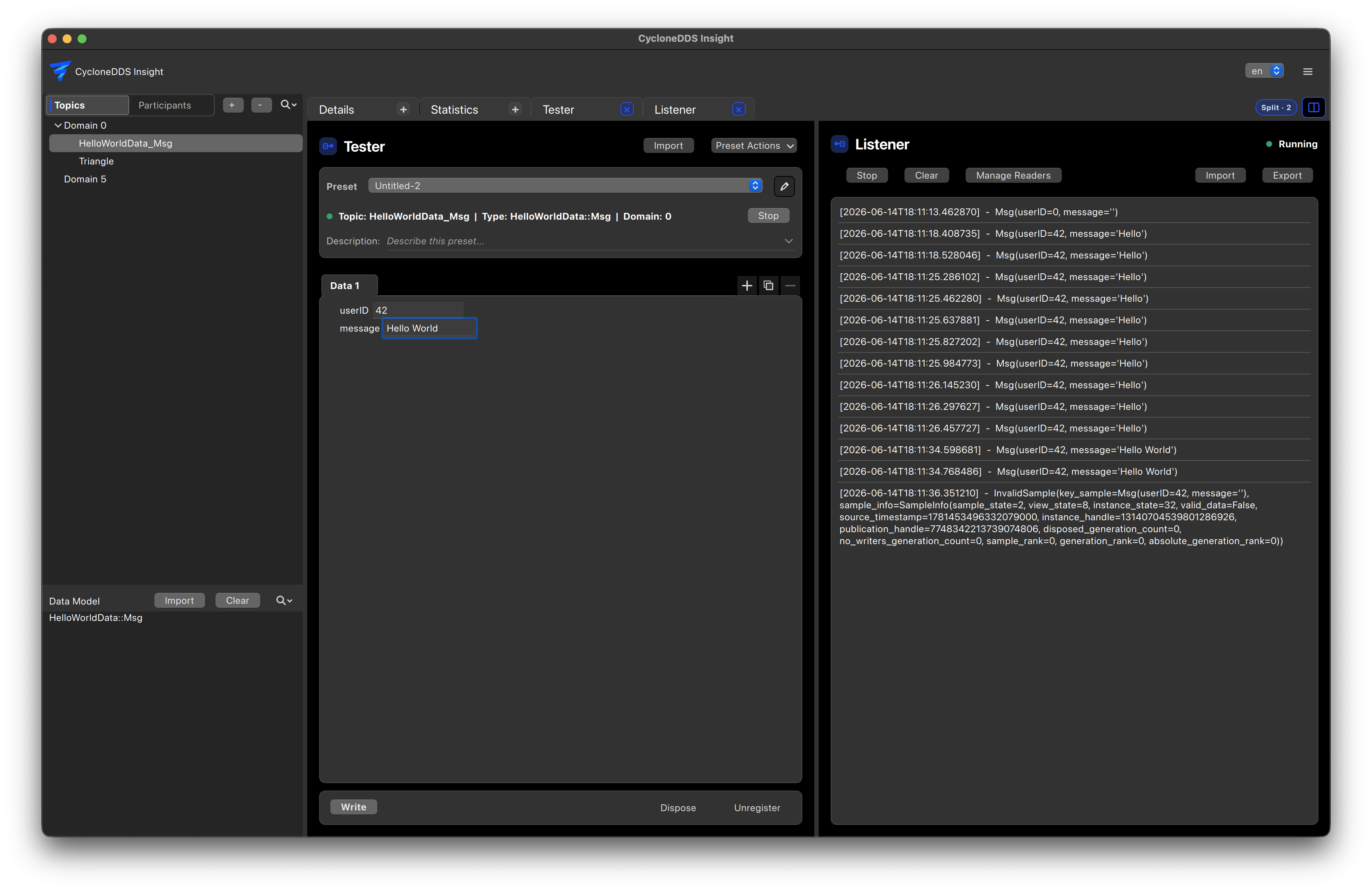
Split View
Split view allows the Details, Statistics, Tester, and Listener views to be displayed side by side. This is useful when data should be written and observed at the same time, or when statistics and endpoint details need to remain visible.
Using Split View
Open the tab that should be the first pane.
Select the split view button on the right side of the tab bar.
Select another tab to add it as an additional pane.
Select further tabs to add more panes, or select an included tab again to remove it.
Drag the separators between the panes to adjust their widths.
Select the split view button again to exit split mode.
The final pane cannot be removed while split mode is active. Exit split mode to return to the normal single-tab view.
The Ctrl+5 shortcut can also be used to enable or disable split mode.